
Safe•Connect requires users to install a program (Safe•Connect client) to verify that computers meet the URI network minimum security requirements. Safe•Connect ensures compliance by displaying a warning page in users’ web browsers, allowing them time to remediate, then eventually disabling internet access if the problem persists. Safe•Connect will never disable access to URI resources; only external websites will be blocked. This means internal services including Sakai, webmail eCampus, etc. will still be accessible.
More specific help may be obtained through the following articles:
- Safe•Connect Frequently Asked Questions.
- Safe•Connect Minimum Security Requirements.
- Troubleshooting Safe•Connect.
- For additional help, please contact the URI Computer Help Desk:
- Phone: (401) 874-4357
- Email: helpdesk@uri.edu
Registration
Users first connecting to the URI network will be prompted to enter their URI Credentials. When connecting to the URI_Secure wireless network, this process is done for you when you configure the network. Users must enter these credentials to authenticate on the network. Authorized guests may request a Guest Access Account.
New Safe*Connect Welcome Page
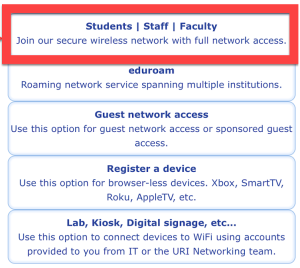
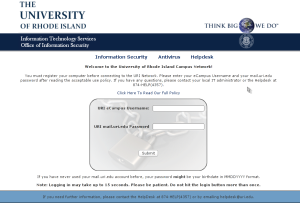
- Upon selecting the Student | Faculty | Staff button – Enter your URI Credentials using your ecampus ID and Sakai password. After checking the AUP agreement, click Sign In.
2. In order to ensure a safe operating environment for all users of the campus network, all computers are required to be scanned for minimum security settings. These include Antivirus, Antispyware, Automatic Updates, etc. To ensure compliance, you must download and run the Safe*Connect installer.
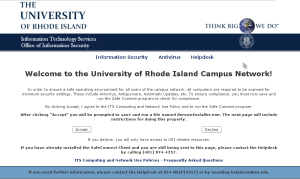
3. Upon clicking Download Now, you will download ServiceInstaller.exe (for windows) or MacPolicyKeyInstaller.zip (for mac) Save the file to your desktop.
-
- Operating systems other than Windows and Macintosh will not be required to install the Safe*Connect client.
4. Double-click the icon on your desktop and follow the on-screen instructions.
5. Safe•Connect will now inform you if your computer does not meet minimum security requirements, and what steps you must take.
Only Windows and Macintosh machines will be required to install the Safe Connect Client.
Linux
Linux computers on wired will be required to authenticate once. Please contact the Help Desk for more information. Since the computer authenticates automatically on URI_Secure, this requirement only applies to the wired network.
Game Consoles
Game consoles on the wired network will be allowed internet access as soon as Safe*Connect detects the device as a console. Logging into PSN or Xbox Live should be sufficient to trigger detection. As none of the game consoles support 802.1x, game consoles must use URI_Open for wireless access. Using the wired network is strongly recommended. If this is not possible, please use the “register a device” page located here.
Common Issues
Authentication
If you are having problems authenticating, make sure you are using the correct login credentials: your URI Credentials.
Firewall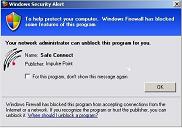
Allow Firewall
If after installing Safe•Connect, you are prompted to allow scManager.sys or safeconnectclient.exe access to the internet, select allow. Not allowing Safe•Connect to access the internet will cause the Safe•Connect enforcer to think that you have not installed Safe•Connect, and as a result, not allow you access to the internet.
Requirements
Operating Systems
Safe Connect currently supports the following:
-
- Windows
- 10
- 8.1
- 8
- 7
- Server 2003
- Macintosh OS X
- Linux
- Windows
Supported Devices
-
- Wired Game Consoles
- Xbox 360
- PS3
- Wii
- Printers
- PDAs
- Wired Game Consoles
Antivirus
If you do not currently have an Antivirus program then please see the Antivirus page.
Safe•Connect supports several Antivirus programs. A complete list can be viewed at the Supported Antivirus page.
Computer Labs
Computer labs can be setup on a special lab account to allow for easier management of clients and identification of relevant support staff. If you operate a Wireless Lab of 5 or more computers, please contact ITS Security via security{AT}uri{dot}edu or call the Service Desk.
Guest Access
URI now offers wired and wireless guest access to users who do not have university issue log-on credentials, but do have an association to the university, whether it be a student, staff, or professor. The URI Faculty or Staff member responsible for the guest can call the Service Desk at 874-HELP or stop by the help desk in the lower level of the library. Those not affiliated with the university in any way may not use this feature.